 SANDBOX STUDIOGAMES & DEVELOPMENTSANDBOX STUDIOGAMES & DEVELOPMENT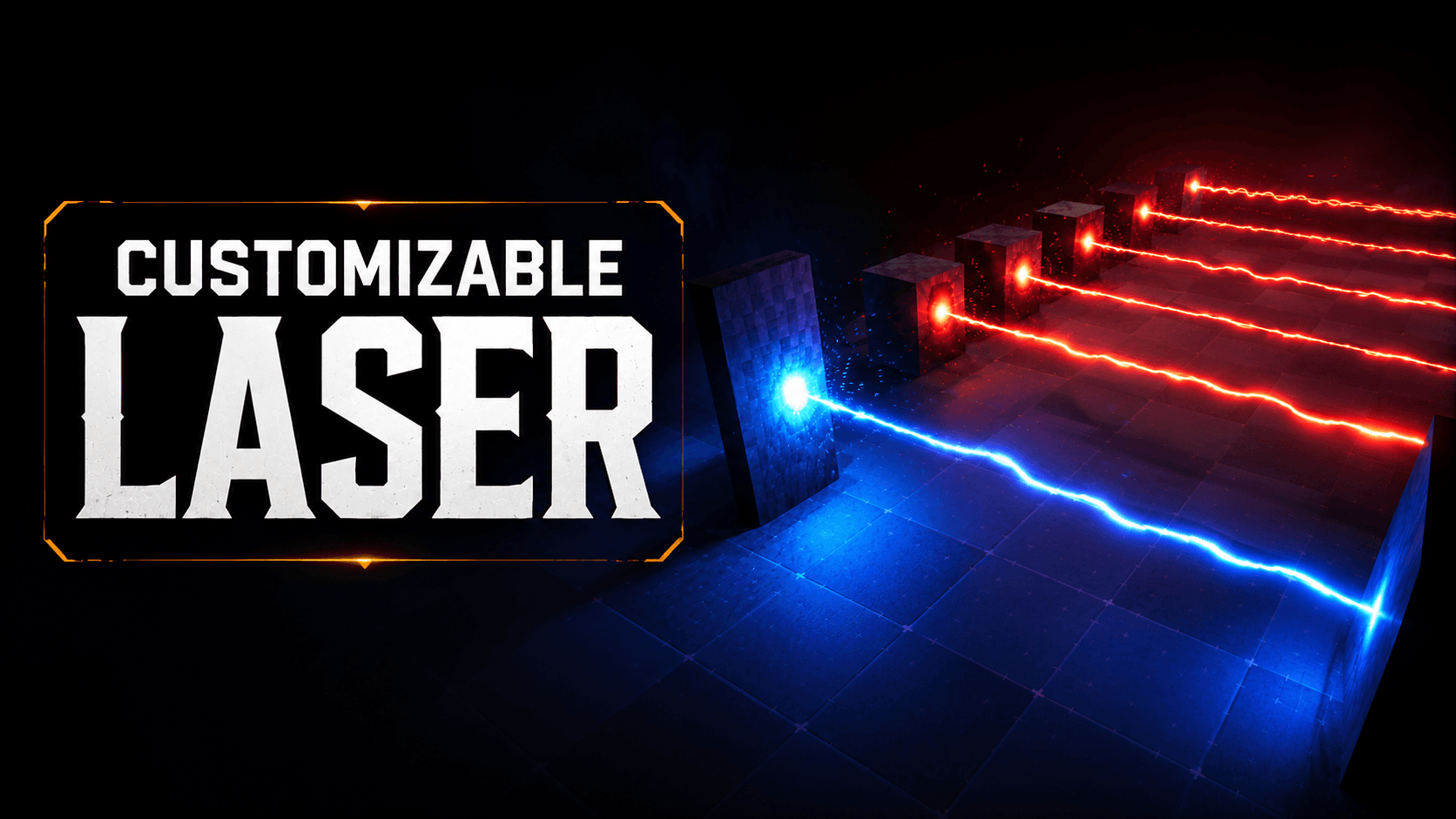
With exposed parameters, you can easily customize the laser’s color, shape, movement, intensity, length, width, and visual effects directly from the Details panel. This allows you to quickly create unique laser variations without duplicating or rebuilding the effect.
To install Laser Customizable VFX, follow these steps:
1. Import Laser Customizable VFX into your Unreal Engine project.
2. The new folder with Laser Customizable VFX will be added to your project. You can find it in the Content Browser under the name BeamLaser.
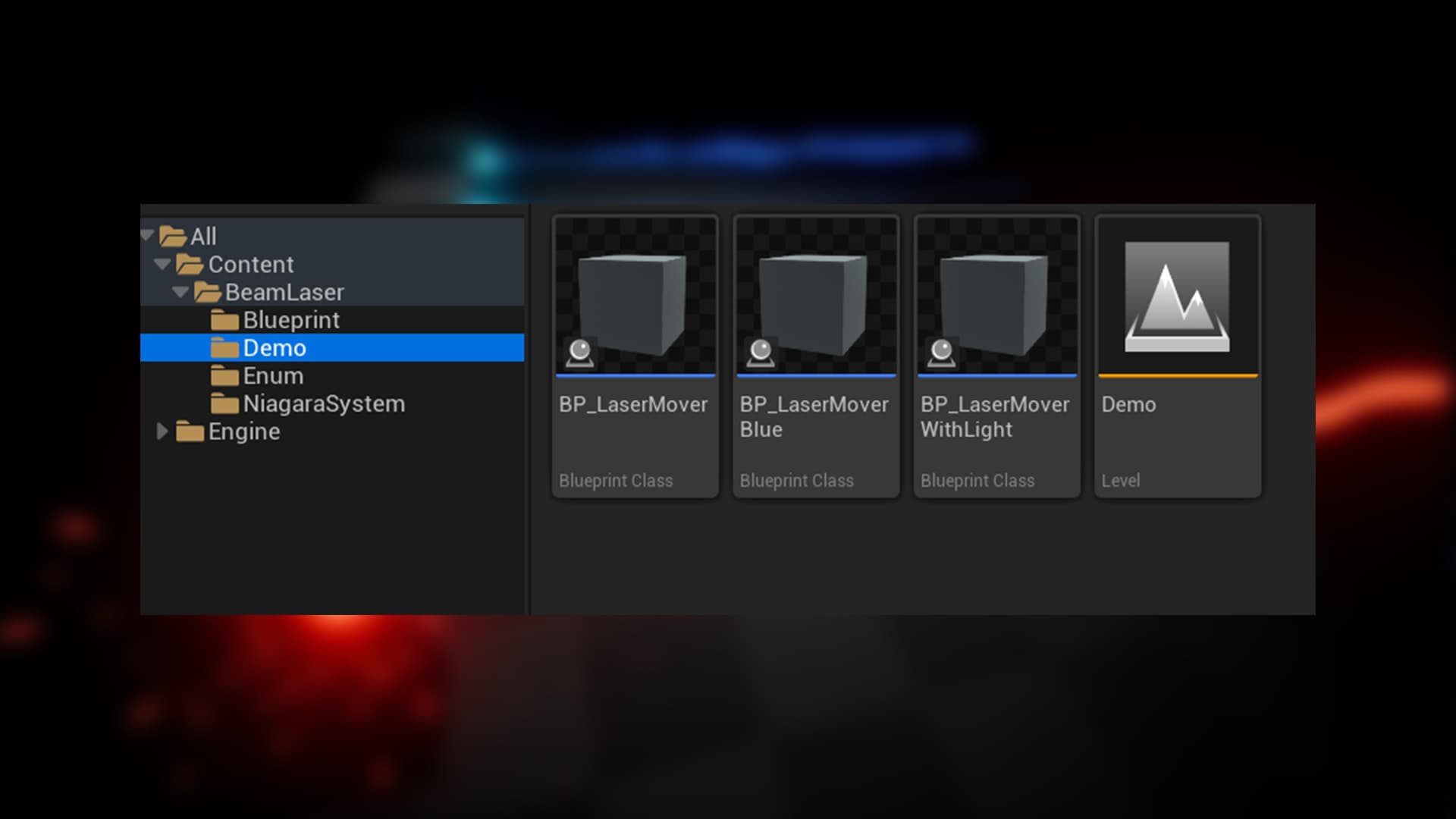
3. The main asset you will be working with is located in the: Blueprint
You can also use the base Niagara system and manually configure the end beam.
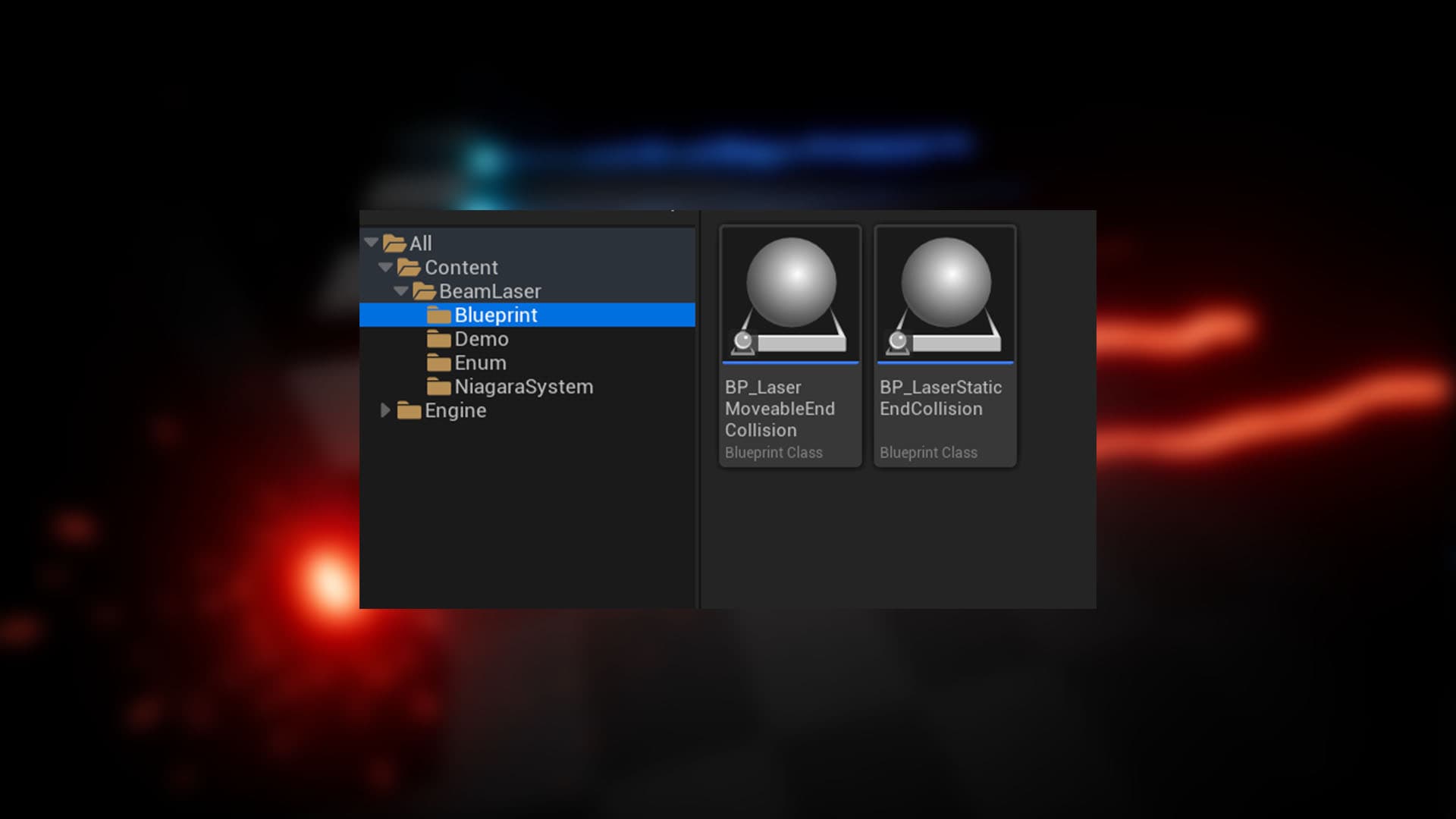
The User Parameters provide direct control over the laser’s visual appearance and behavior. They allow you to enable or disable individual effect elements and fine-tune their properties without modifying the Niagara system itself.
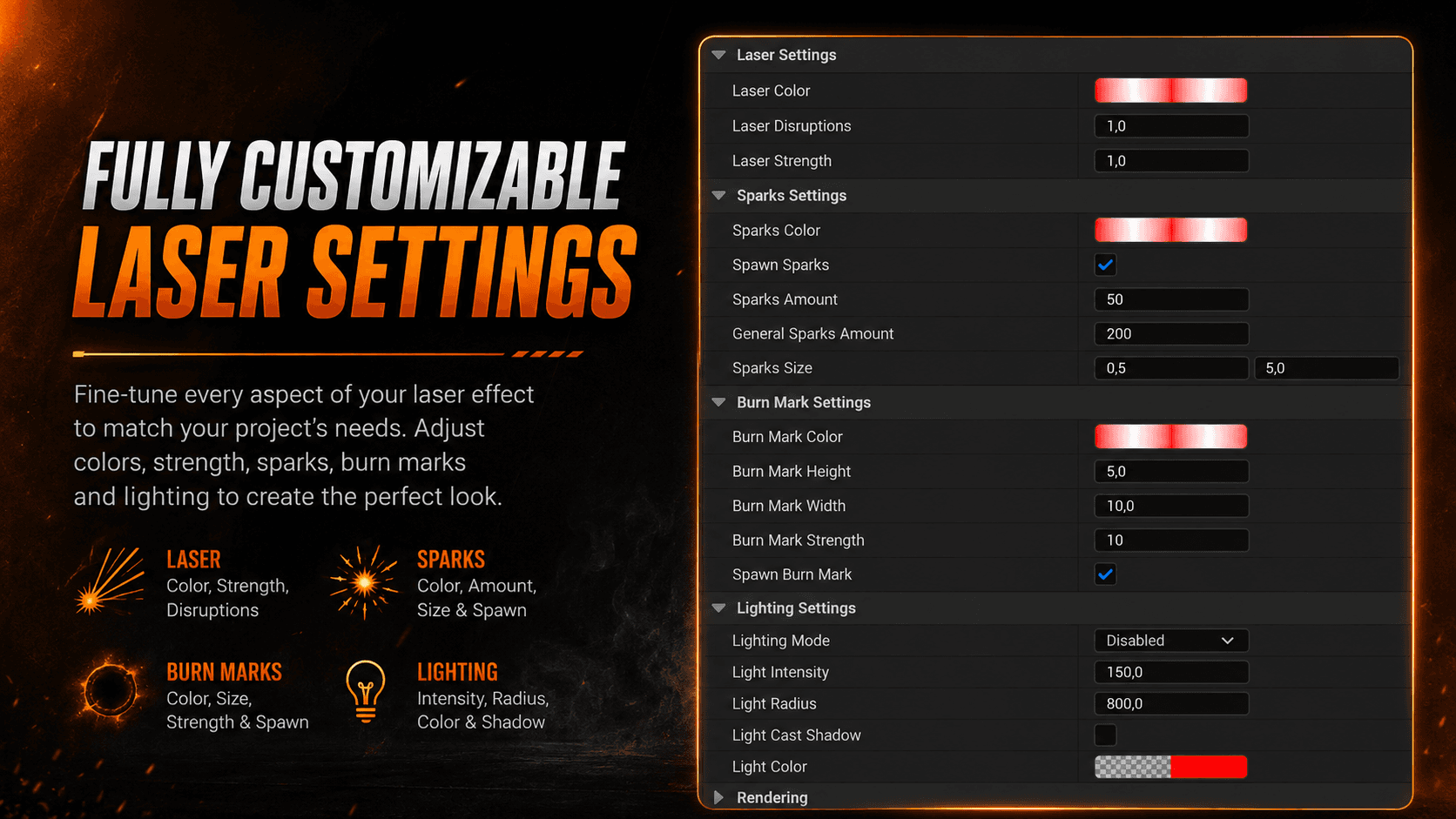
1. Laser Strength: Controls the intensity of the laser beam. Increase this value to create a more powerful laser effect. Reduce it for a subtler appearance.
2. Laser Color: Controls the color of the laser beam. You can choose from a variety of colors to match your game's aesthetic or the specific type of laser you want to create.
3. Laser Disruption: Controls how strongly the laser deviates, wiggles, and sways along its path. Higher values create more pronounced and irregular movement, while lower values produce a straighter and more stable laser beam.
4. Burn Mark Height: Controls the size and height of the burn mark created where the laser interacts with a surface. Higher values produce a larger burn mark, while lower values create a smaller and more subtle effect.
5. Burn Mark Width: Controls the size and height of the burn mark created where the laser interacts with a surface. Higher values produce a larger burn mark, while lower values create a smaller and more subtle effect.
6. Burn Mark Strength: Controls the brightness and intensity of the burn mark created where the laser hits a surface. Higher values produce a brighter and more intense burn effect, while lower values make it more subtle.
7. Burn Mark Color: Controls the color of the burn mark created where the laser hits a surface. This allows you to match the burn effect to the laser’s overall visual style.
8. Spawn Burn Mark: Enables or disables the burn mark effect when the laser hits a surface. When enabled, a burn mark is spawned at the impact location.
9. Sparks Color: Controls the color of the sparks generated by the laser effect. This allows you to match the sparks with the laser beam or create a contrasting visual effect.
10. Spawn Sparks: Enables or disables the sparks effect when the laser hits a surface. When enabled, sparks are spawned at the impact location.
11. Sparks Amount: Controls the number of sparks generated by the laser effect. This parameter changes the visual density and intensity of the sparks.
12. General Sparks Amount: Controls the number of sparks generated by the laser effect. This parameter changes the visual density and intensity of the sparks.
13. Sparks Size: Defines the size of the sparks generated by the laser effect. This parameter changes the visual scale and appearance of the sparks.
14. Light Intensity: Controls the intensity of the light emitted by the laser effect. Higher values create stronger and brighter illumination, while lower values produce a softer and more subtle lighting effect.
15. Light Radius: Controls the radius of the light emitted by the laser effect. Higher values create a wider area of illumination, while lower values produce a more focused light around the laser.
16. Light Color: Controls the color of the light emitted by the laser effect. This allows you to match the lighting to the laser beam or create a contrasting visual effect.
17. Light Cast Shadow Not-recommended: Enables or disables shadow casting from the laser’s dynamic light source. When enabled, the light can cast shadows onto surrounding objects and surfaces.
18. Light Mode: Controls the quality and performance level of the laser’s dynamic lighting.
Theres couple of options to choose:
- Disabled: Disables the dynamic light for better performance.
- Optimized: Uses optimized lighting settings for a balance between visual quality and performance.
- Less Optimized: Uses higher-amount of lighting for improved visual fidelity at a greater performance cost.
For the best balance between visual quality and performance, it is recommended to keep dynamic lighting disabled whenever it is not necessary.
If lighting is required, use the Optimized quality setting whenever possible. Dynamic lights can have a noticeable performance impact, especially when multiple laser effects are active at the same time.
Shadow casting should be enabled only when it is truly needed. Dynamic shadows are significantly more performance-intensive and can become costly when many lasers are present in the scene.
If you want to change the laser globally and modify its default behavior or appearance from the ground up, open the Niagara System and navigate to the User Parameters section.
Changes made directly to the Niagara System will affect the laser’s default global settings, allowing you to redefine its core appearance and behavior rather than adjusting individual instances.
For instance-specific customization, use the exposed parameters directly on the laser actor in the Details panel.
Please note that changes made to the Niagara System → User Parameters will only apply automatically when creating new Blueprints.
The pre-configured Blueprints included with the product already have their parameter values overridden and stored internally in their own variables. Because of these overrides, changing the default values in the Niagara System will not affect existing Blueprints that were already created.
If you want the new global settings to be used by an existing Blueprint, you will need to update or reset its stored parameter values manually.
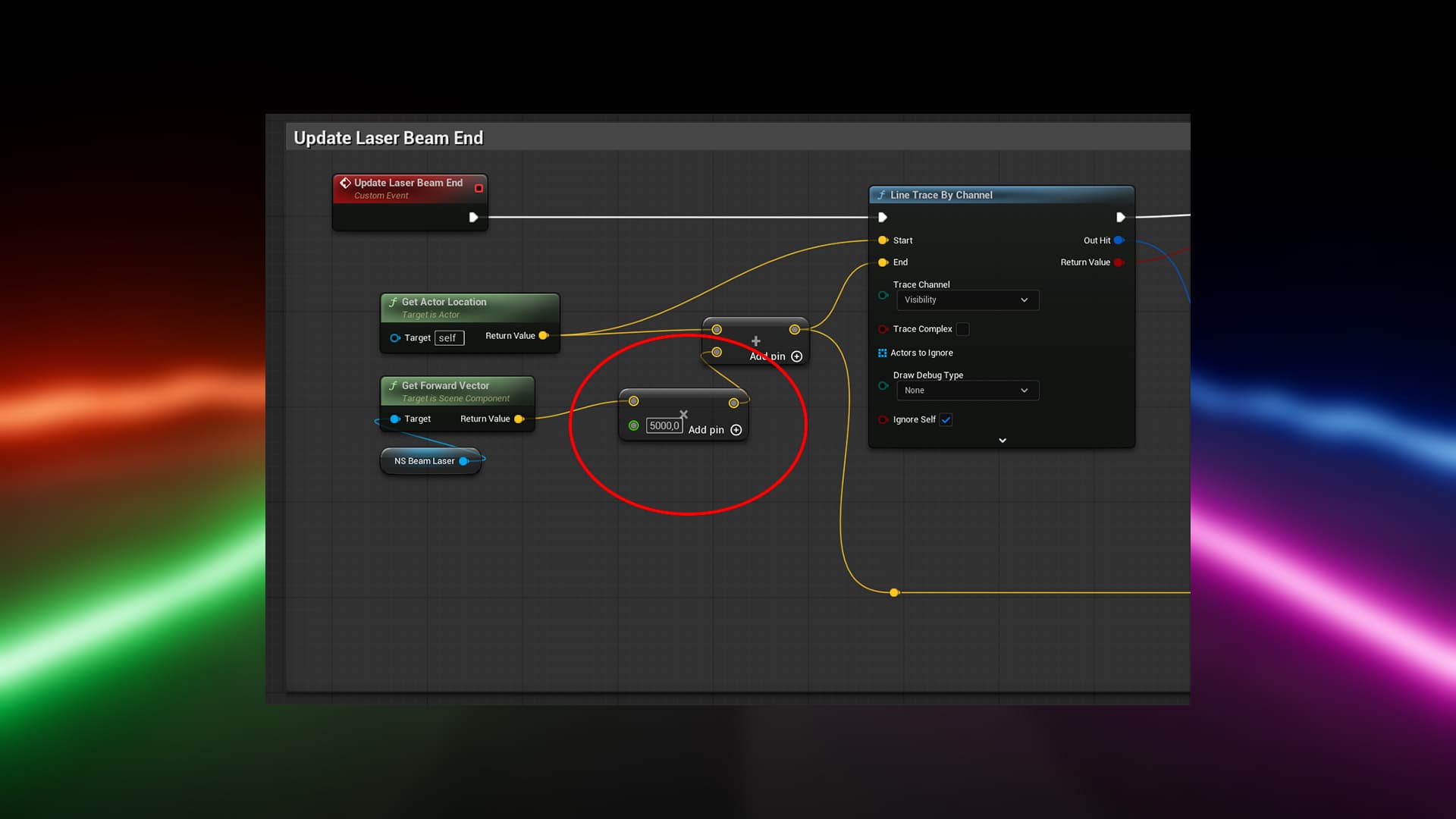
If you want to change the maximum length of the laser, this setting can be found directly inside the Blueprint.
Locate the parameter responsible for the laser’s maximum length and adjust its value to define how far the laser can extend. This allows you to control the maximum range of the laser independently for each Blueprint instance.
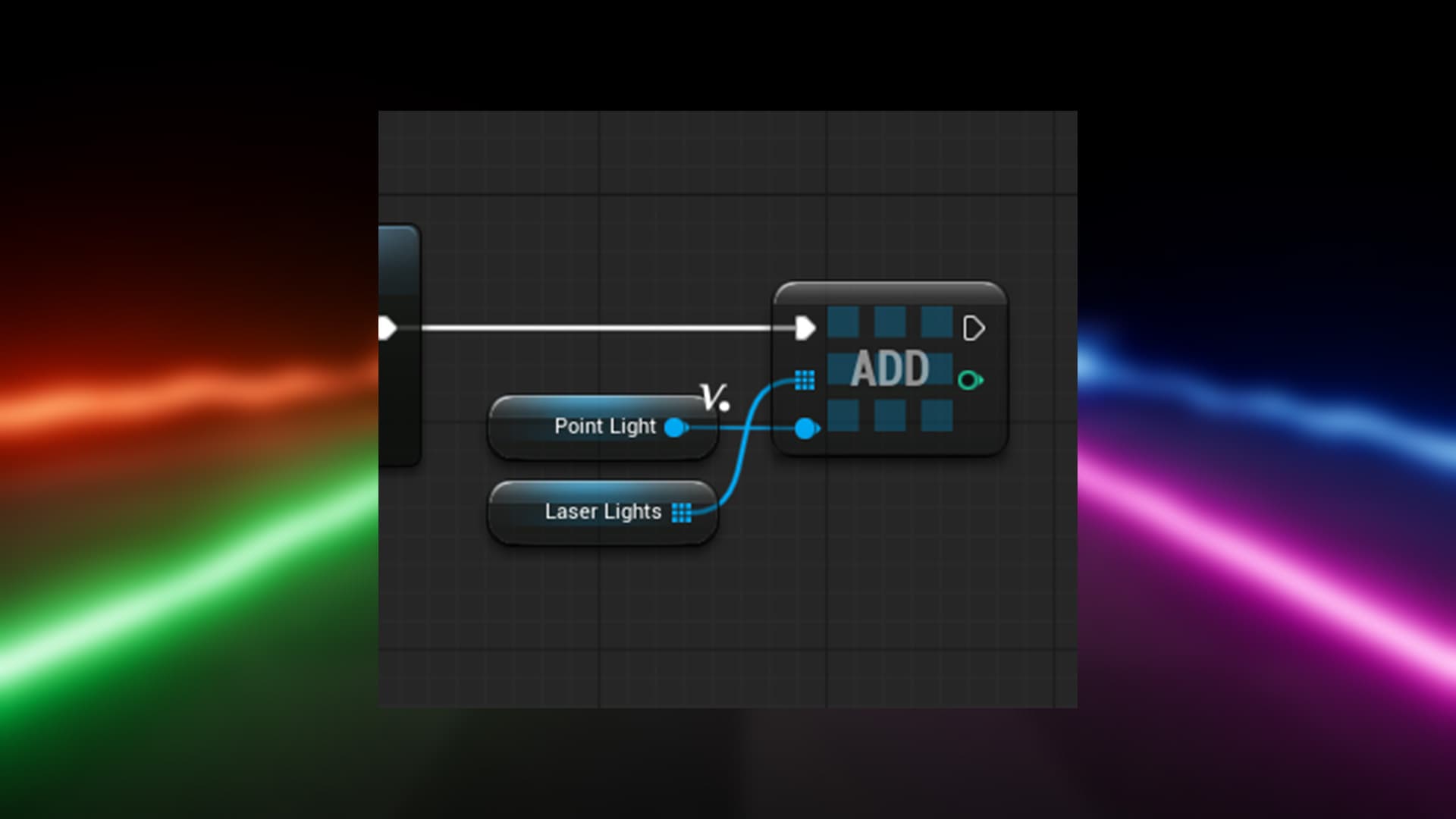
When Enable Light is enabled, all light points generated by the laser are automatically stored in a dedicated variable.
This variable provides developers with direct access to the generated light points, allowing them to modify, control, or use them for their own purposes. You can use these references to implement custom lighting behavior, change their properties, or integrate the light points into your own gameplay systems.
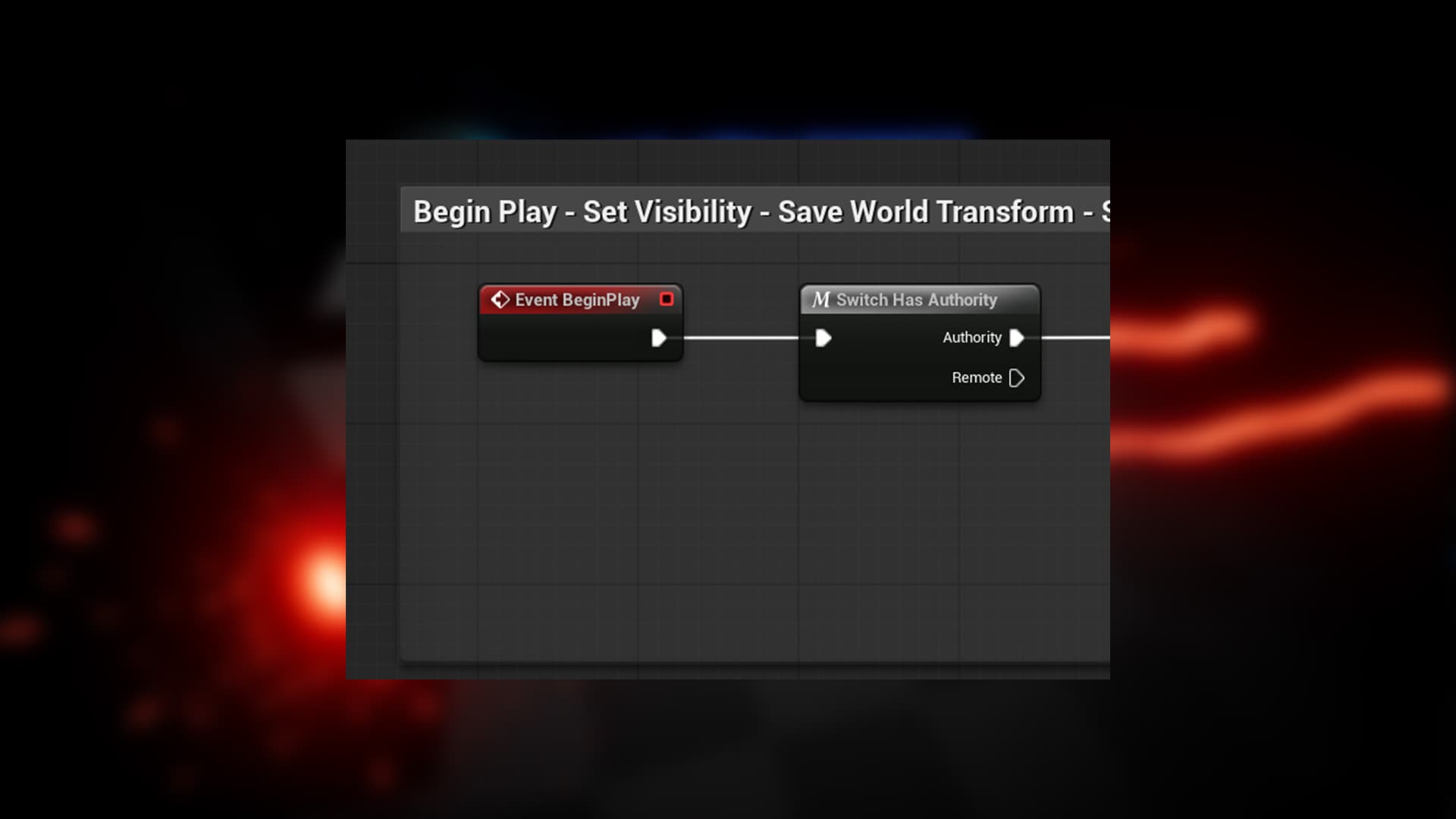
The laser configuration is managed exclusively by the Host in multiplayer. Any changes made to the laser’s parameters are controlled and replicated from the Host to ensure that all clients receive the same configuration.
The same applies to the Blueprint responsible for laser movement and position updates. Its movement logic is managed by the Host, ensuring that the laser’s position remains synchronized across all connected clients.
This approach helps maintain consistent laser behavior and synchronization in multiplayer environments.
When you place one of the provided Blueprint actors in the level, you will see the actor’s position point along with an arrow indicating the direction in which the laser will travel.
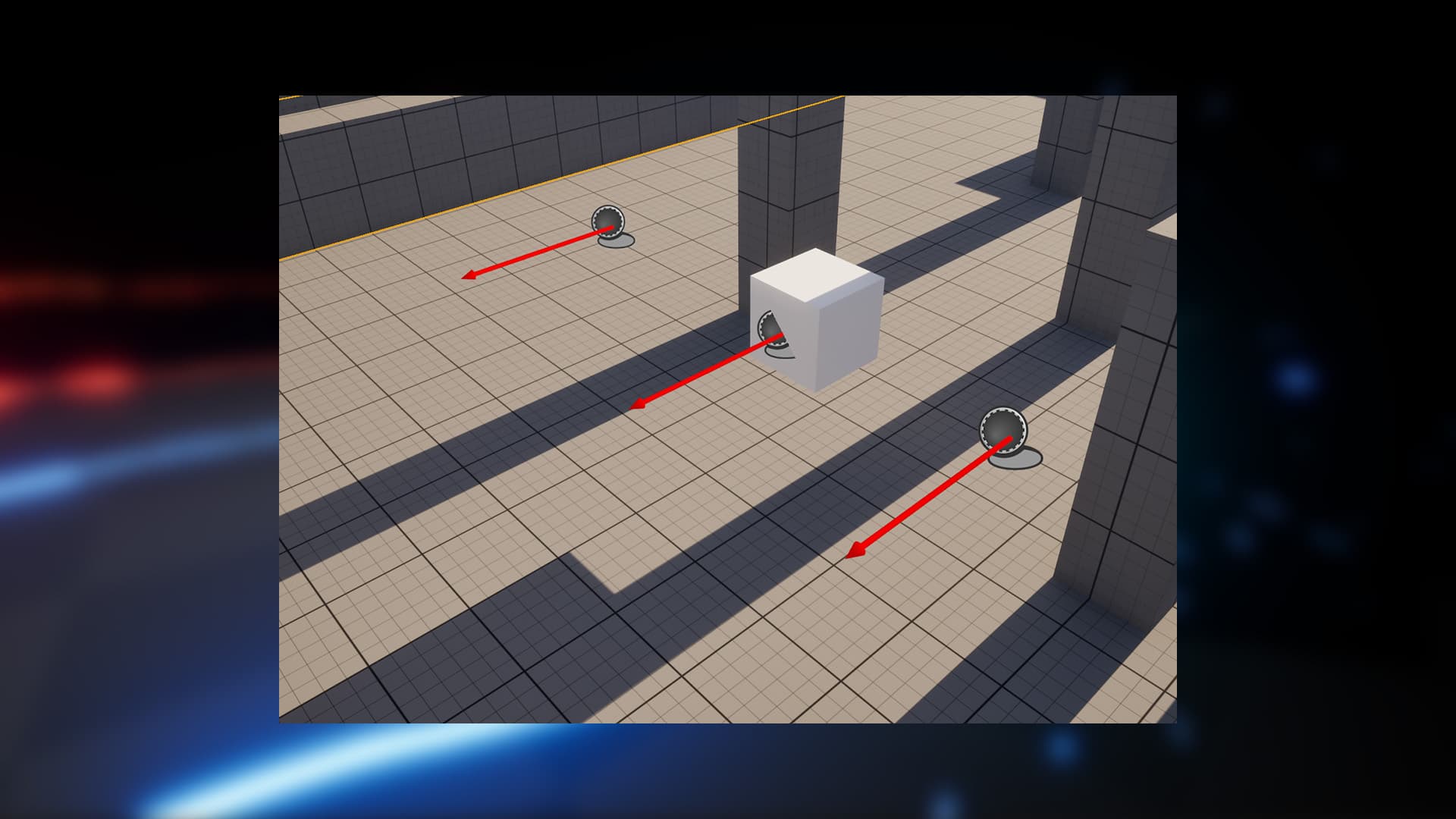
The laser itself will not be visible in the Unreal Engine Editor because its visibility is intentionally disabled. The laser will only become visible when you start the simulation or play the game.
This behavior is intentional and is designed to make level editing easier. Since the laser does not have a predefined local position in the Editor, displaying it there could cause the effect to appear in an unexpected or random location. This could interfere with other actors and make positioning and level design more difficult.
By hiding the laser in the Editor, you can work with a clean representation of the Blueprint while still seeing exactly where the actor is placed and in which direction the laser will move during gameplay.
sandboxstudiogames@gmail.com