 SANDBOX STUDIOGAMES & DEVELOPMENTSANDBOX STUDIOGAMES & DEVELOPMENT
You can enable or disable individual visual elements and modify their size, intensity, radius, height, and overall appearance directly from the Details panel.
To install Stylized Explosion Customizable VFX, follow these steps:
1. Import Stylized Explosion Customizable VFX into your Unreal Engine project.
2. The new folder with Stylized Explosion Customizable VFX will be added to your project. You can find it in the Content Browser under the name StylizedExplosion.
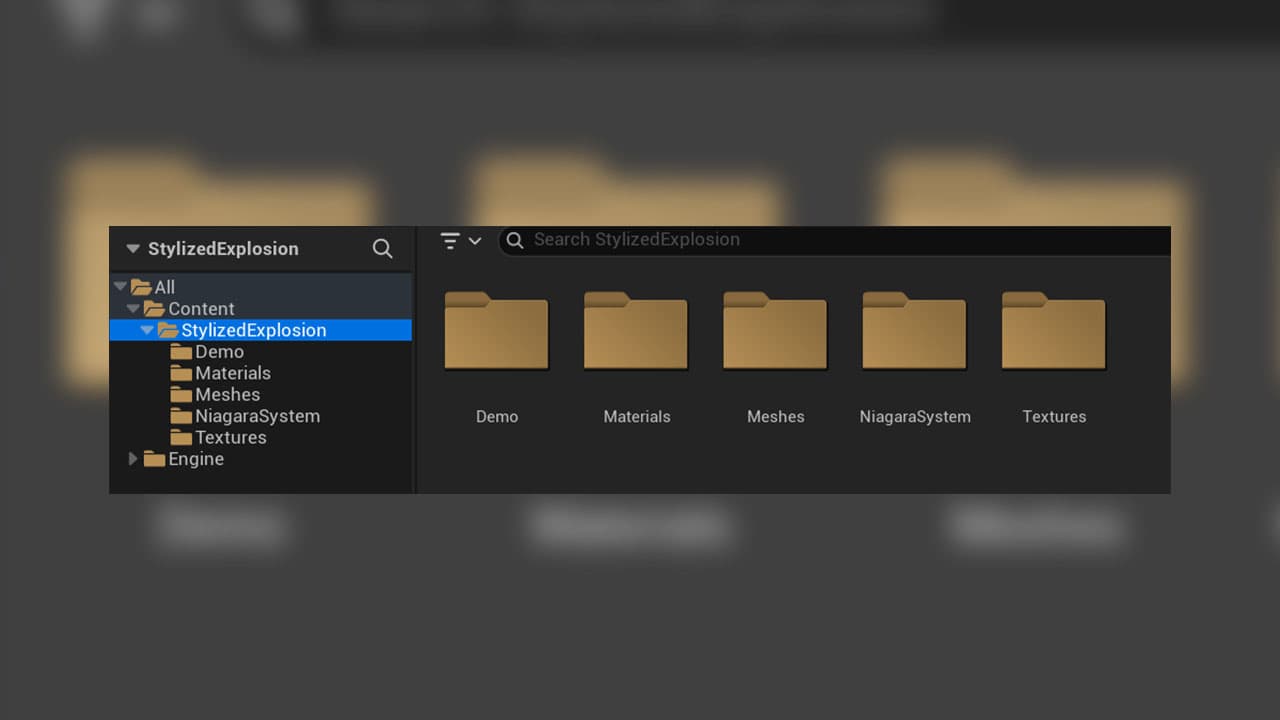
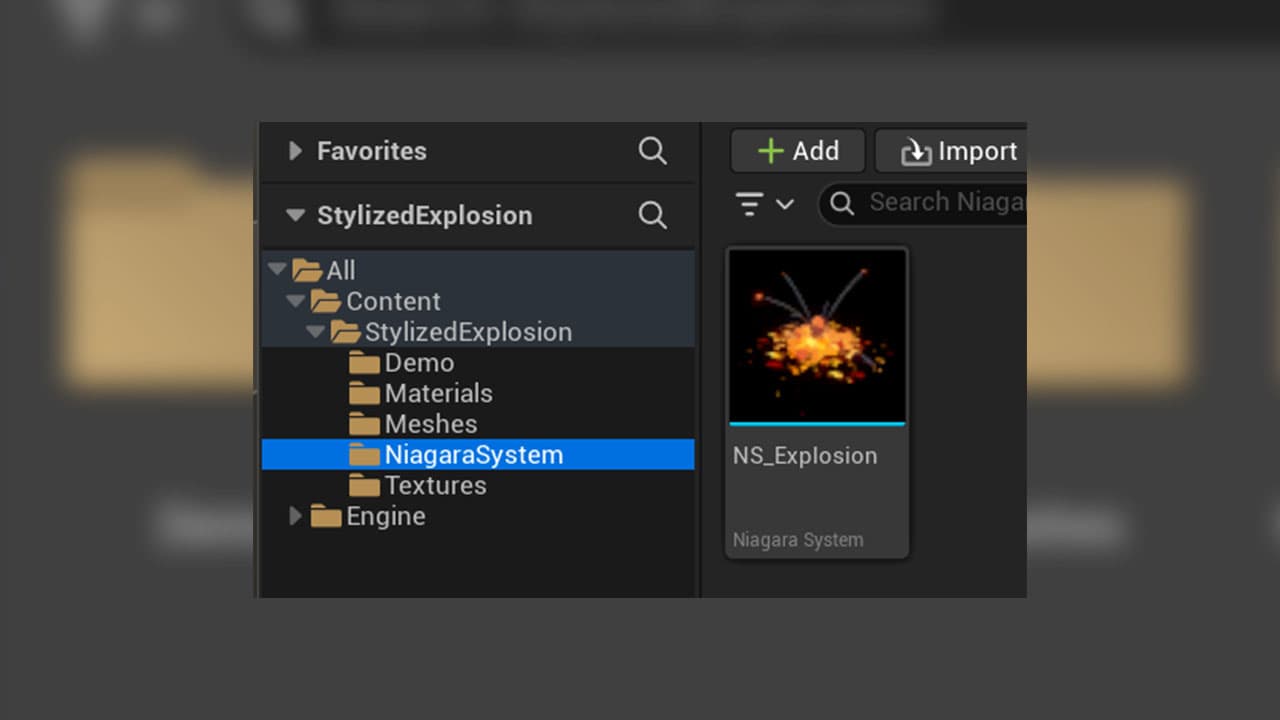
3. The main asset you will be working with is located in the: NiagaraSystem
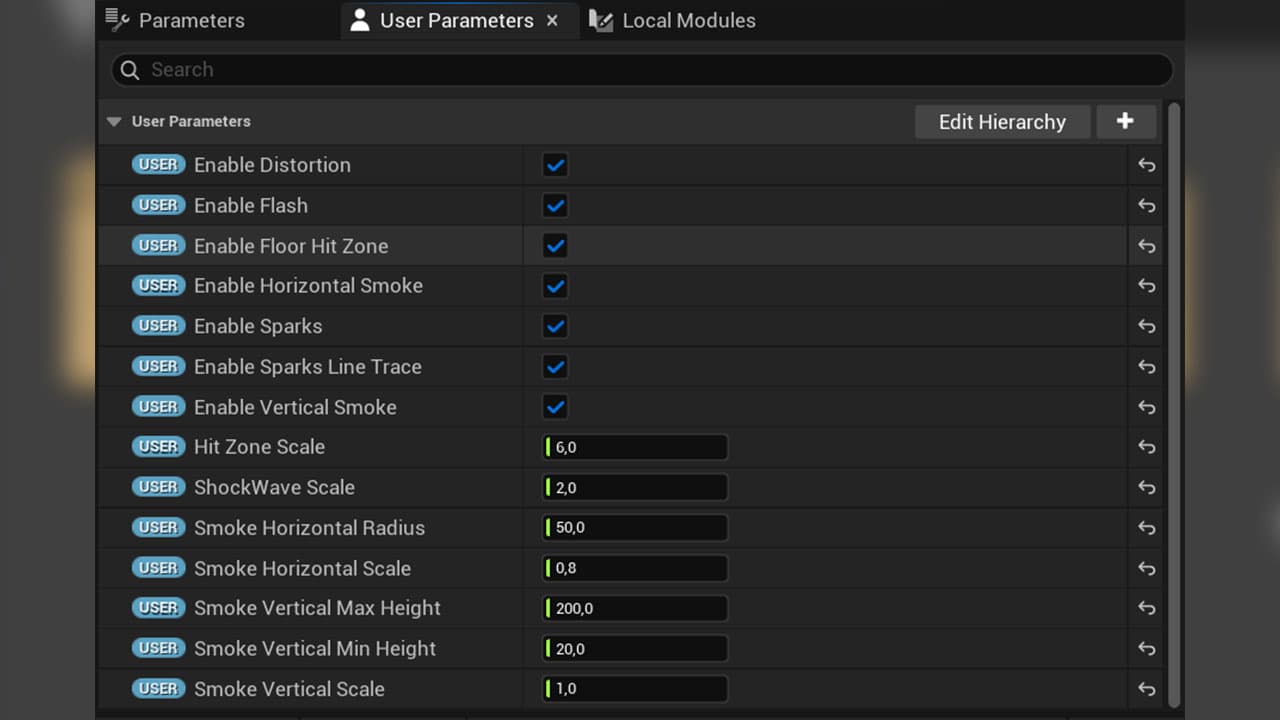
The User Parameters section contains the main parameters that control the overall appearance, scale, and behavior of the explosion.
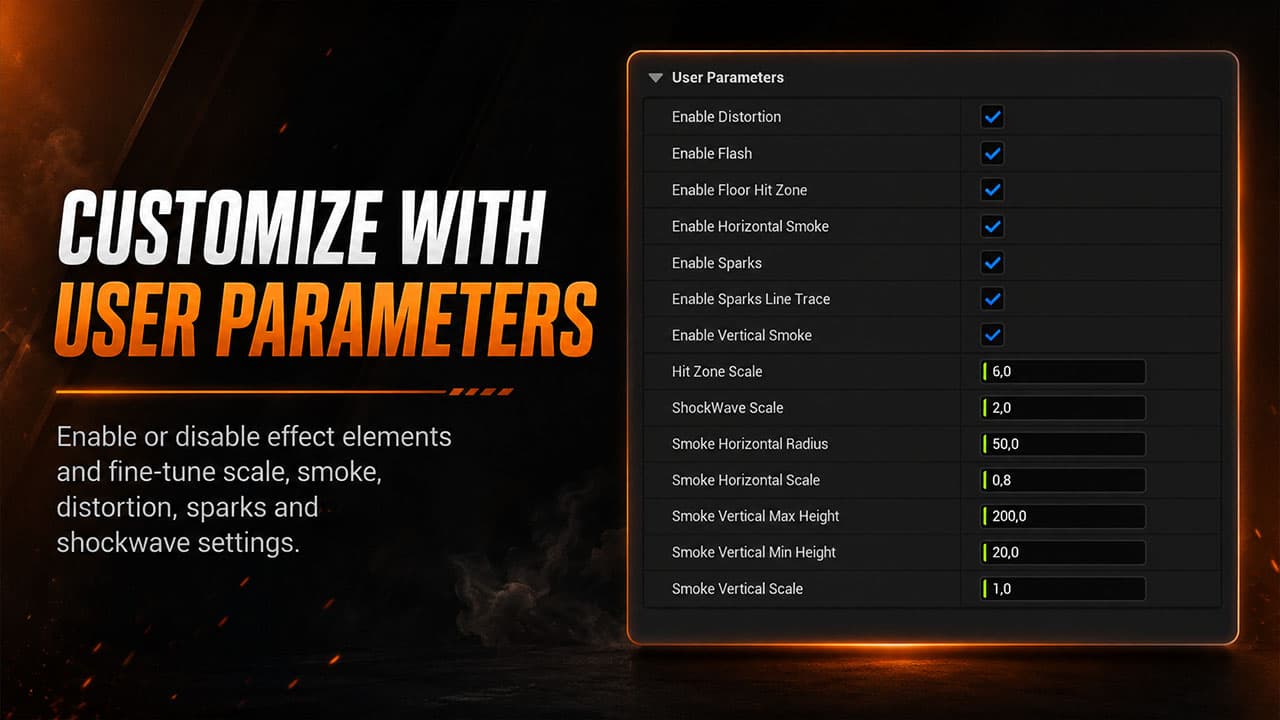
1. Enable Distortion: Enables or disables the distortion effect around the explosion. When enabled, the explosion distorts the background and creates a heatwave-like visual effect. Disable it when you need a cleaner effect or want to reduce visual complexity.
2. Enable Flash: Enables or disables the initial flash created when the explosion starts. The flash adds a short, bright burst of light that makes the explosion feel more powerful and immediate.
3. Enable Floor Hit Zone: Enables or disables the stylized impact effect displayed on the ground. This element represents the area where the explosion hits the surface and helps connect the effect visually with the environment.
4. Enable Horizontal Smoke: Enables or disables the smoke that spreads outward along the ground. This smoke expands horizontally from the center of the explosion and helps increase the perceived size of the impact.
5. Enable Sparks: Enables or disables the main spark particles emitted by the explosion. These particles travel outward from the center and add energy, movement, and detail to the effect.
6. Enable Sparks Line Trace: Enables or disables the dark trails generated behind the spark particles. When enabled, selected sparks leave thin, dark lines behind them as they move away from the explosion. This adds contrast, motion, and a more stylized appearance to the effect.
7. Enable Vertical Smoke: Enables or disables the smoke that rises upward from the explosion. This element creates the main vertical smoke column and adds height and volume to the effect.
8. Hit Zone Scale: Controls the size of the floor impact effect. Increase this value to create a larger impact area. Reduce it for smaller explosions such as mines, traps, or compact projectiles.
9. ShockWave Scale: Controls the overall size of the shockwave. Higher values create a larger expanding shockwave, while lower values keep it closer to the explosion center.
10. Smoke Horizontal Radius: Controls how far the horizontal smoke can spread from the center of the explosion. Increase this value to cover a wider ground area.
11. Smoke Horizontal Scale: Controls the overall size of the horizontal smoke particles. This parameter changes the visual thickness and scale of the smoke spreading across the ground.
12. Smoke Vertical Max Height: Defines the maximum height that the vertical smoke can reach. Higher values create a taller smoke column and are better suited for larger explosions.
13. Smoke Vertical Min Height: Defines the minimum height used by the vertical smoke. Together with the maximum height parameter, it controls the height range and variation of the rising smoke particles.
14. Smoke Vertical Scale: Controls the overall scale of the vertical smoke. Increase this value to make the rising smoke larger and more dominant. Reduce it for smaller and more compact explosion effects.
Start by enabling only the effect elements you need. Then adjust the scale values to match the size of the explosion in your project.
If the current explosion proportions already match your needs and you only want to make the entire effect larger or smaller, you do not need to modify the individual User Parameters.
Simply adjust the Niagara System’s Transform Scale in the Details panel.
The same scale can also be controlled dynamically from Blueprint. After obtaining a reference to the Niagara Component, use:
- Set Relative Scale 3D when scaling the effect relative to its parent
- Set World Scale 3D when setting its scale in world space
Use the same value on all three axes to preserve the original proportions:X = Y = Z
For example, a scale of 2.0, 2.0, 2.0 makes the complete explosion approximately twice as large while maintaining the proportions between smoke, sparks, shockwave, distortion, and other visual elements.
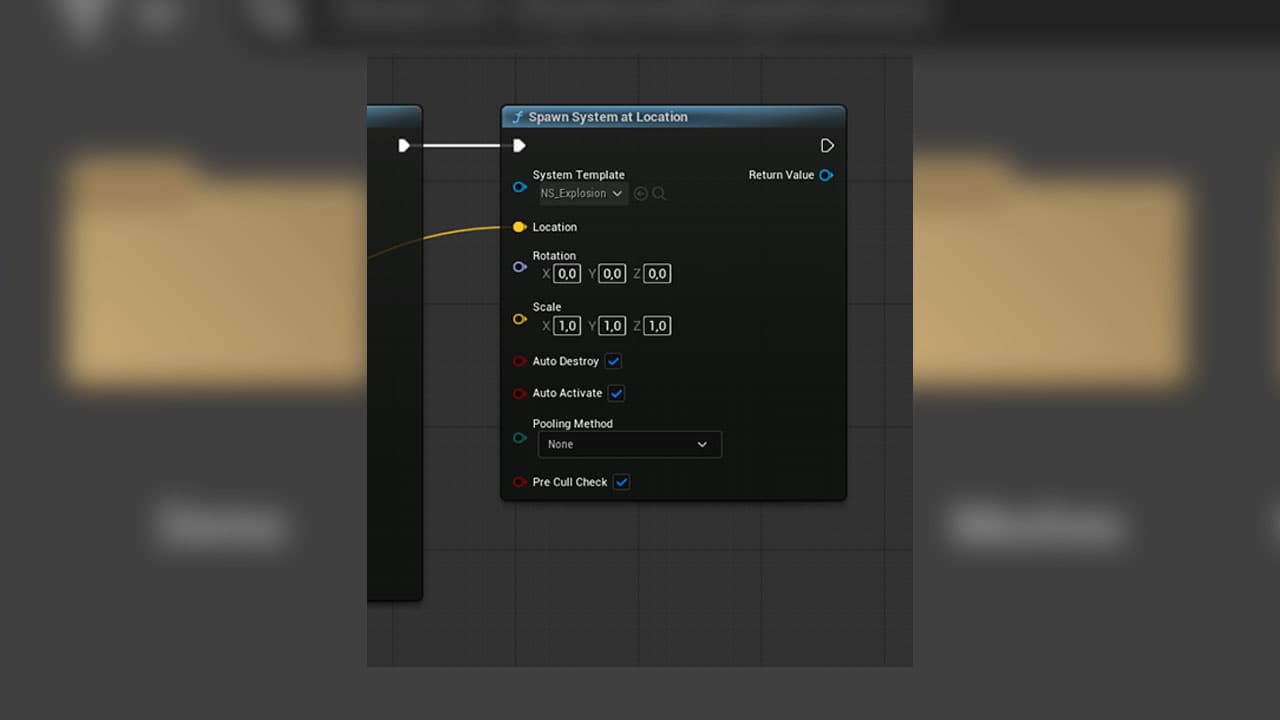
If you want to create a new explosion variation that can be reused throughout your project, simply duplicate the included Niagara System.
Open the duplicated system, adjust the exposed User Parameters in the Details panel, and save the asset with a descriptive name.
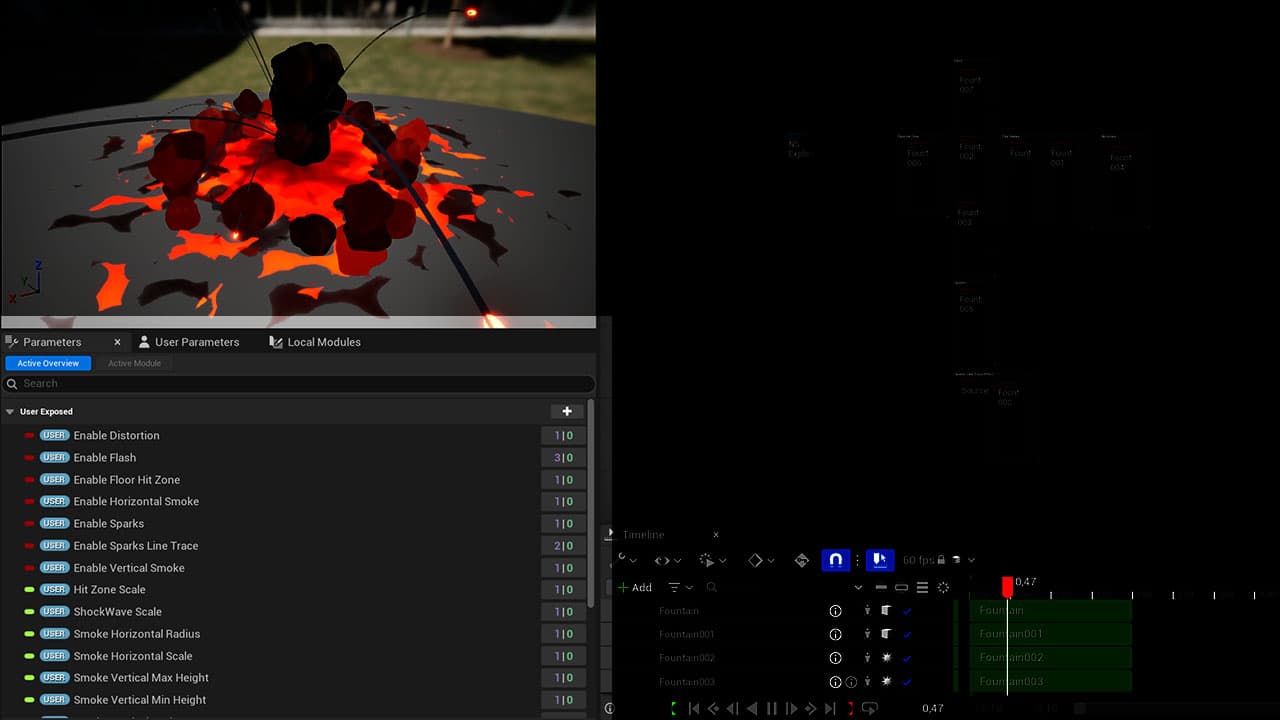
This allows you to create permanent presets for different gameplay purposes, such as:
Each duplicated Niagara System keeps its own parameter configuration, so it can be placed in the level or spawned from Blueprint multiple times without having to set the parameters again.
It is recommended to keep the original Niagara System unchanged and use duplicated versions for your custom presets.
sandboxstudiogames@gmail.com